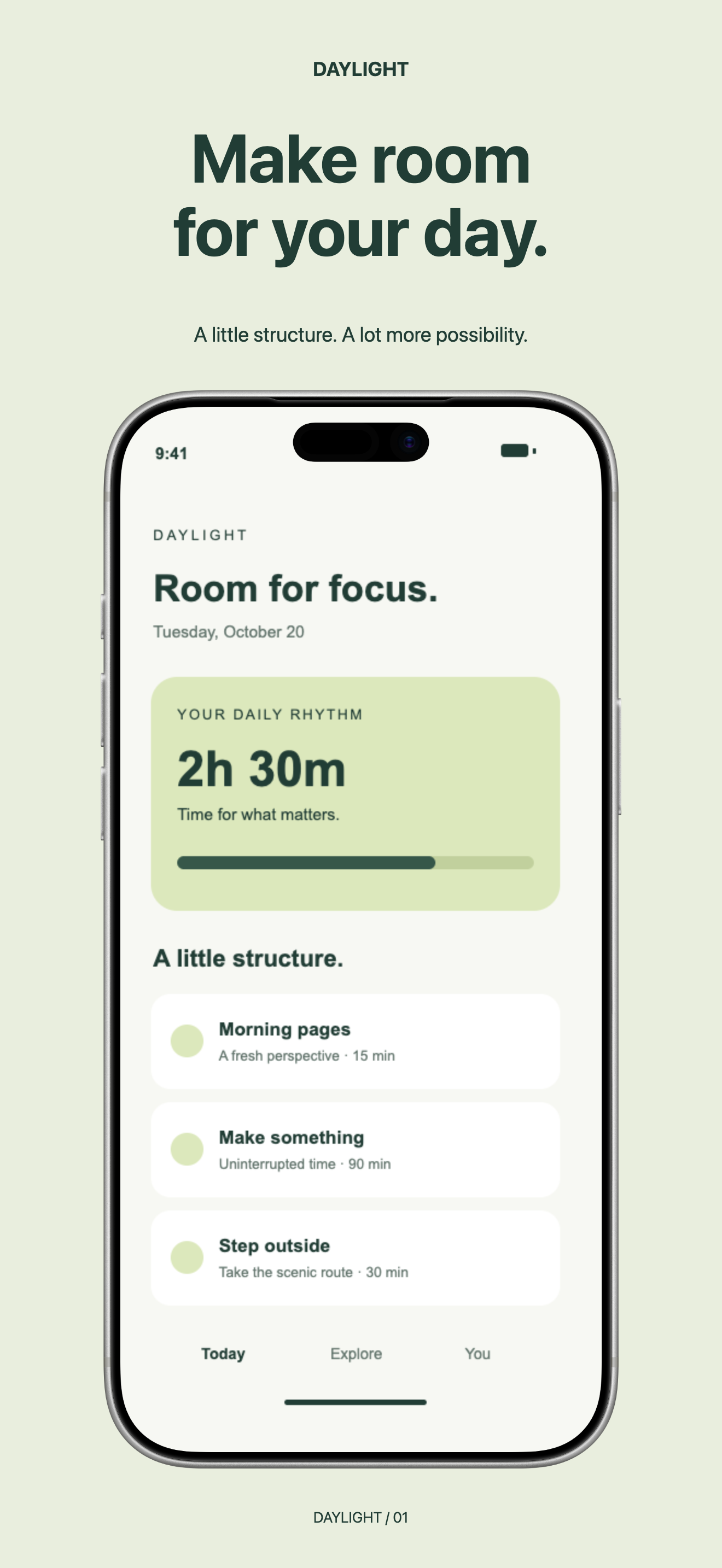
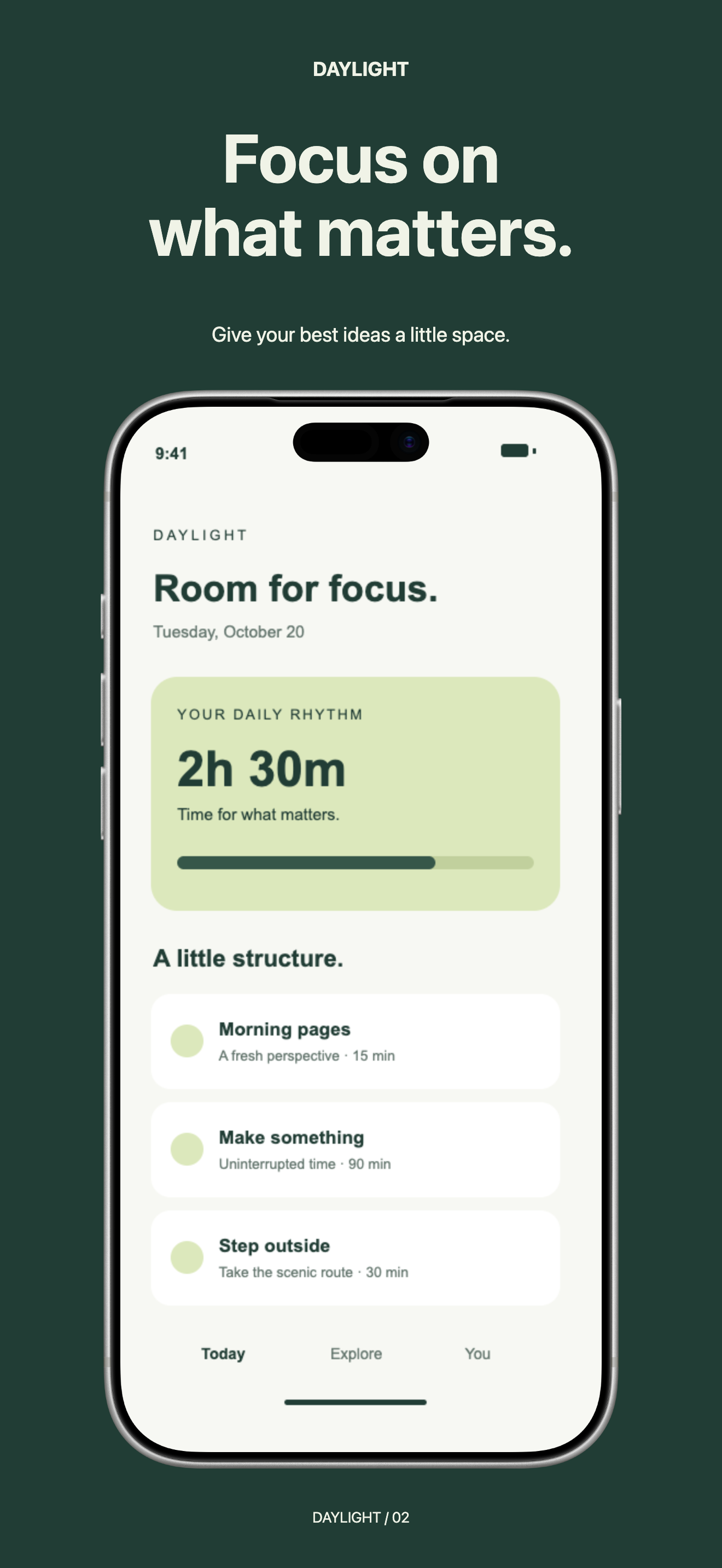
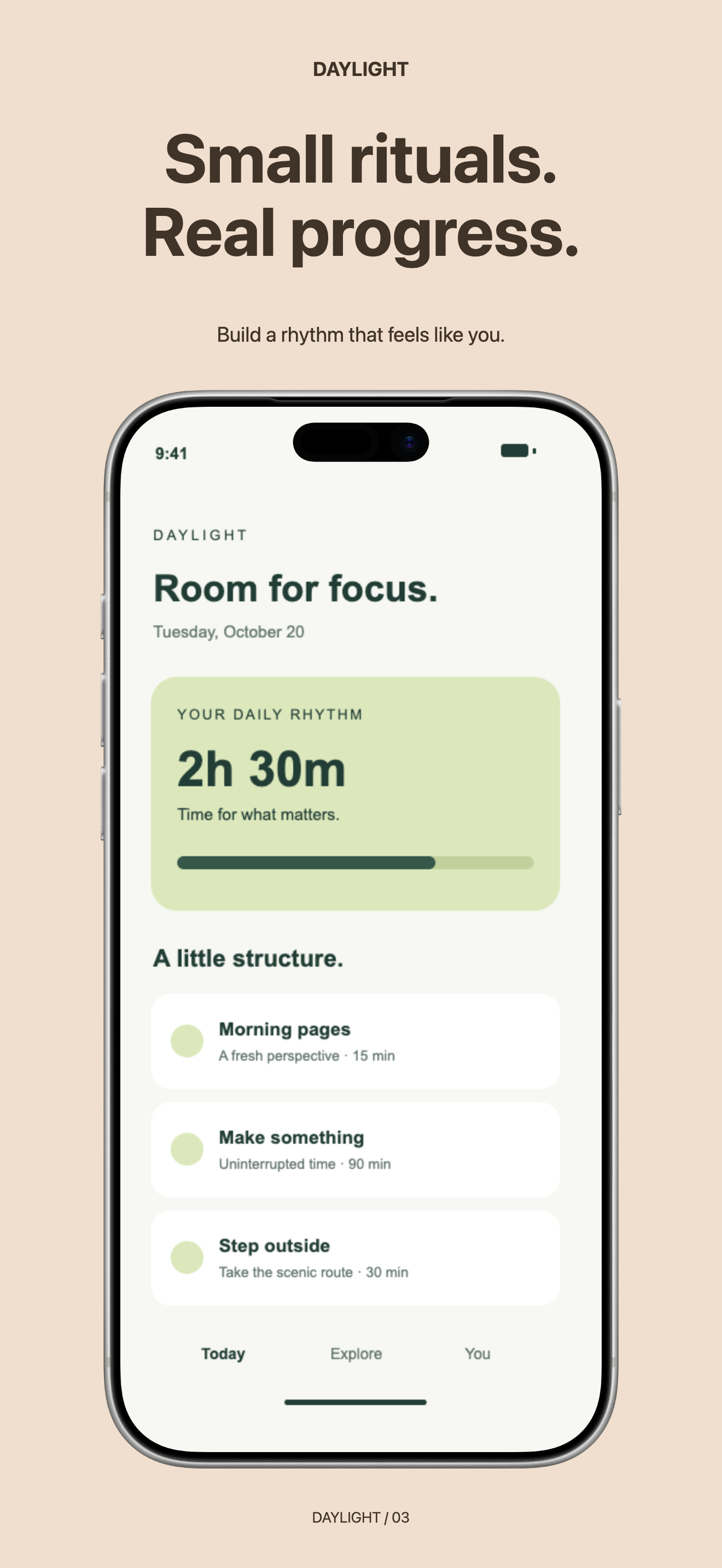
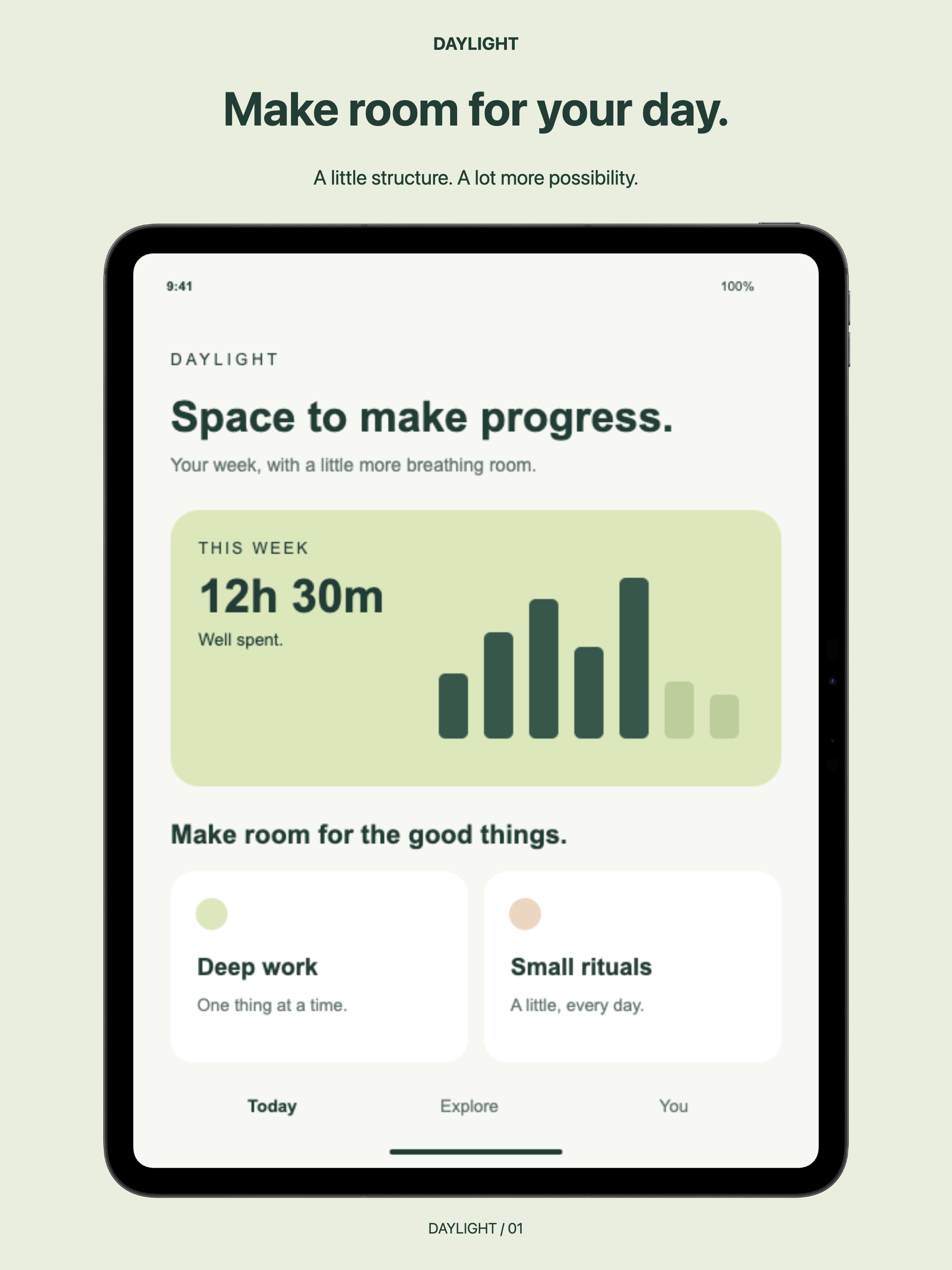
Put your app in the picture. Editable iPhone, iPhone Duo and iPad screenshot sets with three coordinated layouts. Load the official Apple frame, replace your screenshots, and export PNGs.
Preview includes the official Apple bezel. Artwork loads automatically; import the original PNG once if it is unavailable.
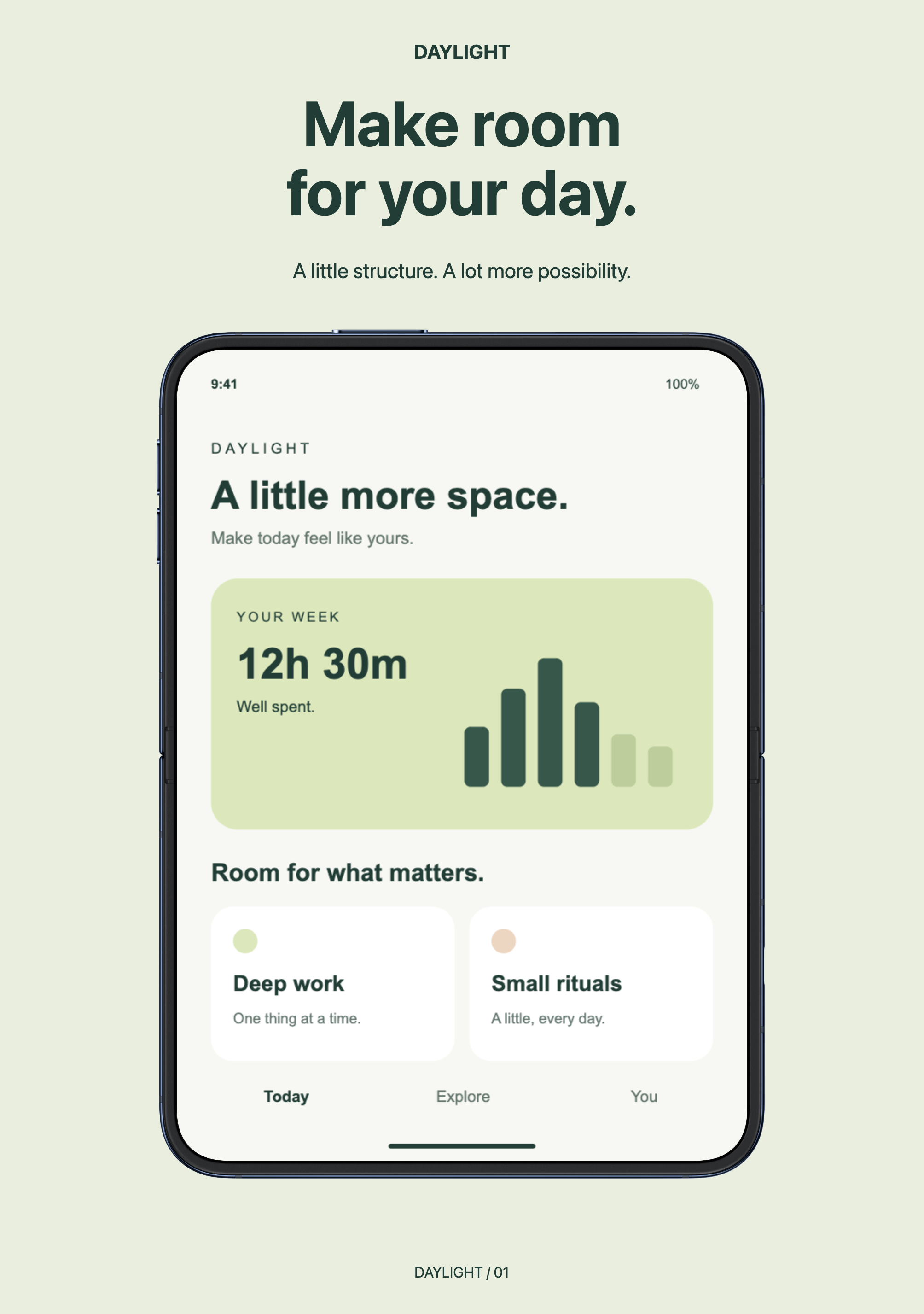
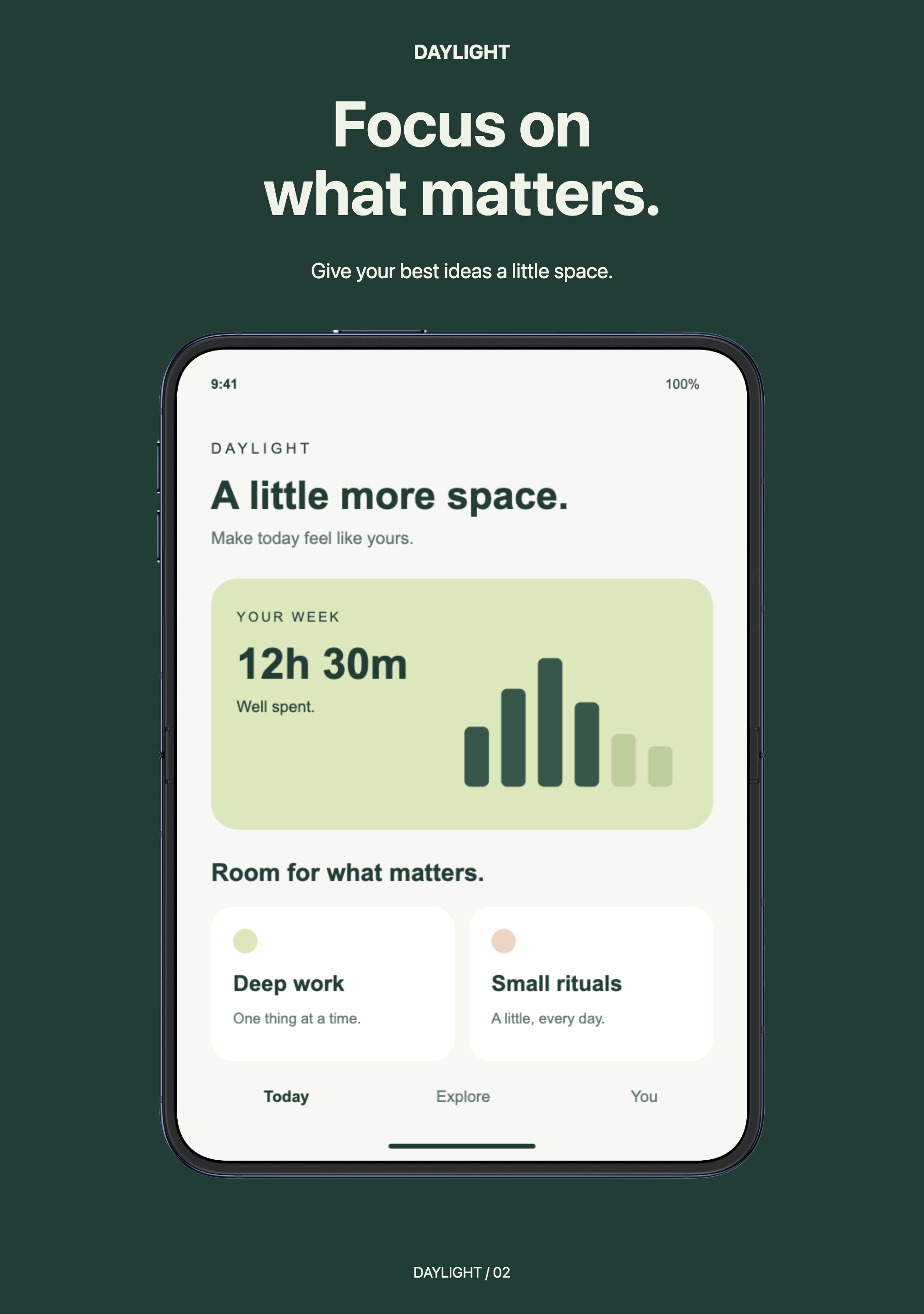
Three coordinated iPhone App Store layouts. Use Apple’s official iPhone 17 Pro Max portrait frame, then replace each screenshot. Artwork loads automatically; local import is available if needed.
Preview includes the official Apple bezel. Artwork loads automatically; import the original PNG once if it is unavailable.
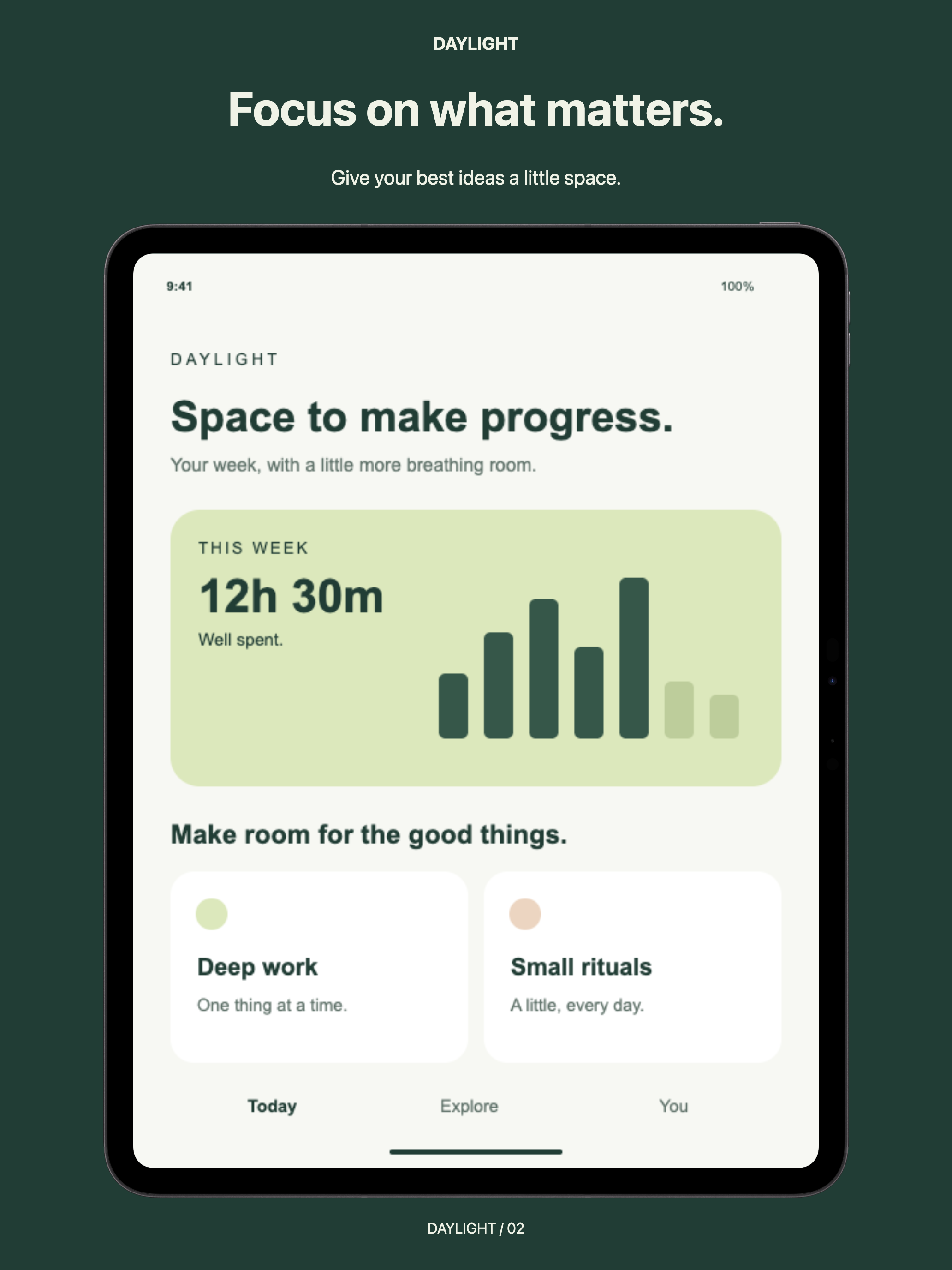
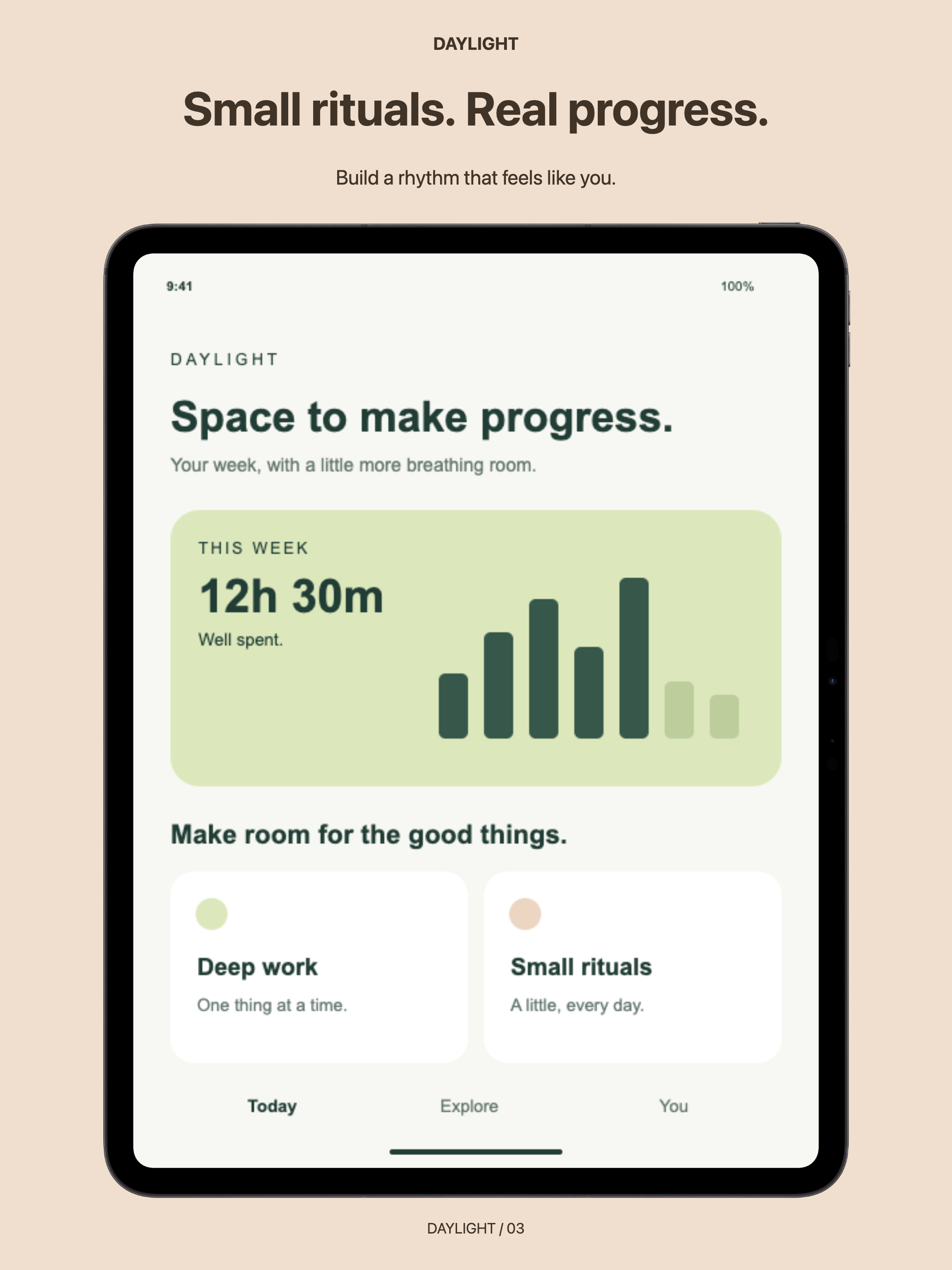
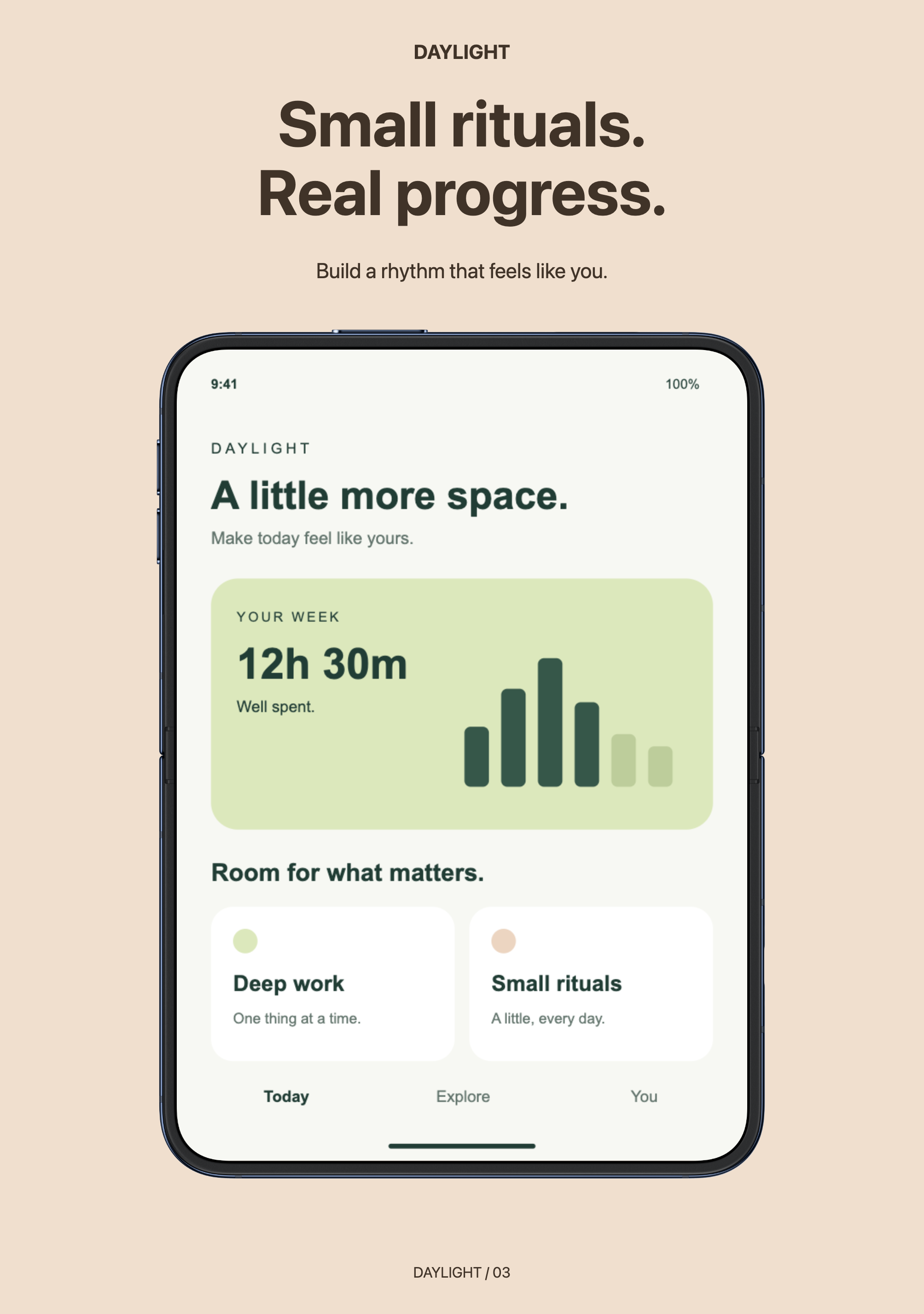
Three coordinated iPad App Store layouts. Use Apple’s official iPad Pro (M5) 13-inch portrait frame, then replace each screenshot. Artwork loads automatically; local import is available if needed.
Preview includes the official Apple bezel. Artwork loads automatically; import the original PNG once if it is unavailable.
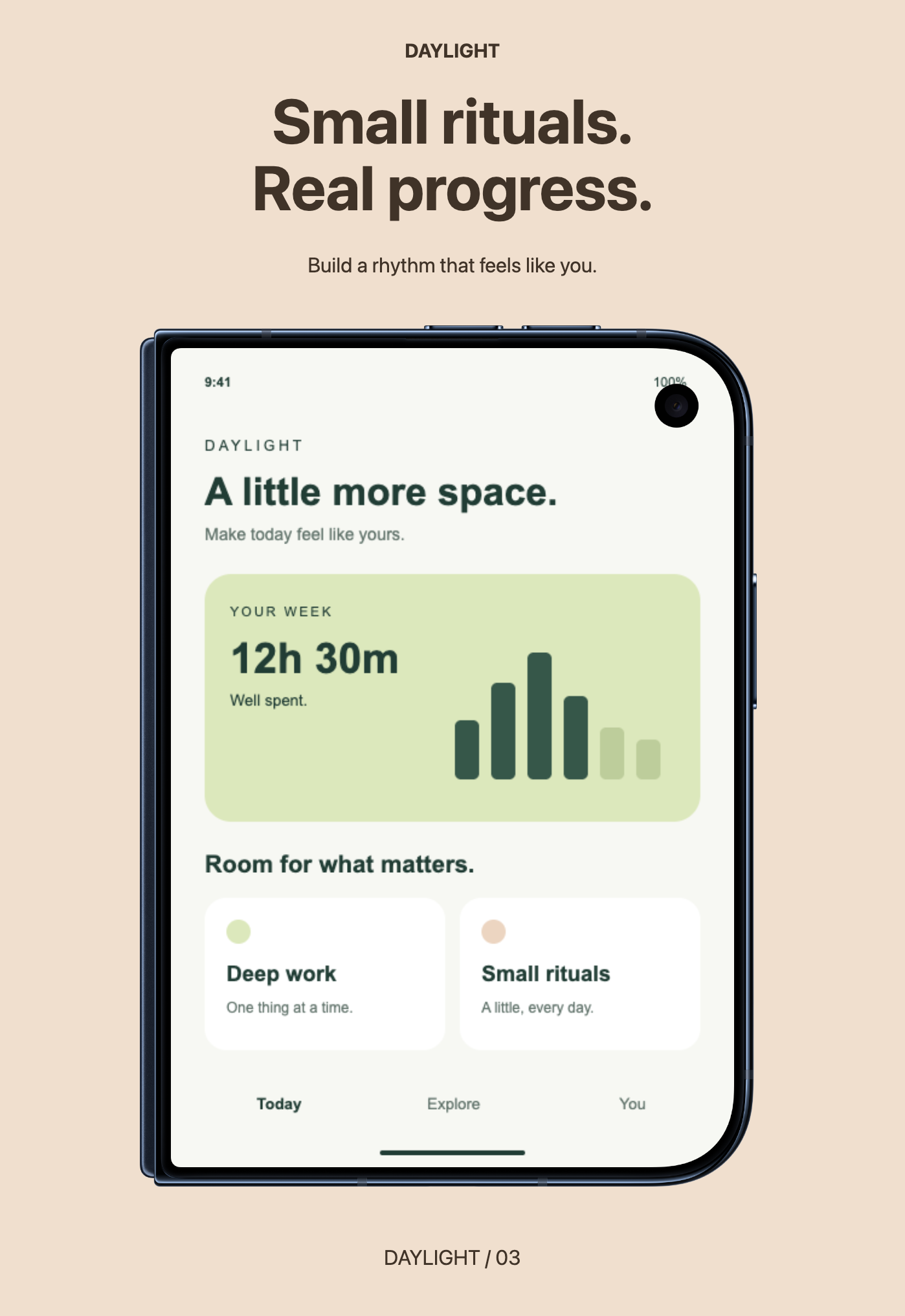
Three coordinated iPhone Duo — Outer App Store layouts. Use Apple’s official iPhone Duo · Outer display portrait frame, then replace each screenshot. Artwork loads automatically; local import is available if needed.
Preview includes the official Apple bezel. Artwork loads automatically; import the original PNG once if it is unavailable.
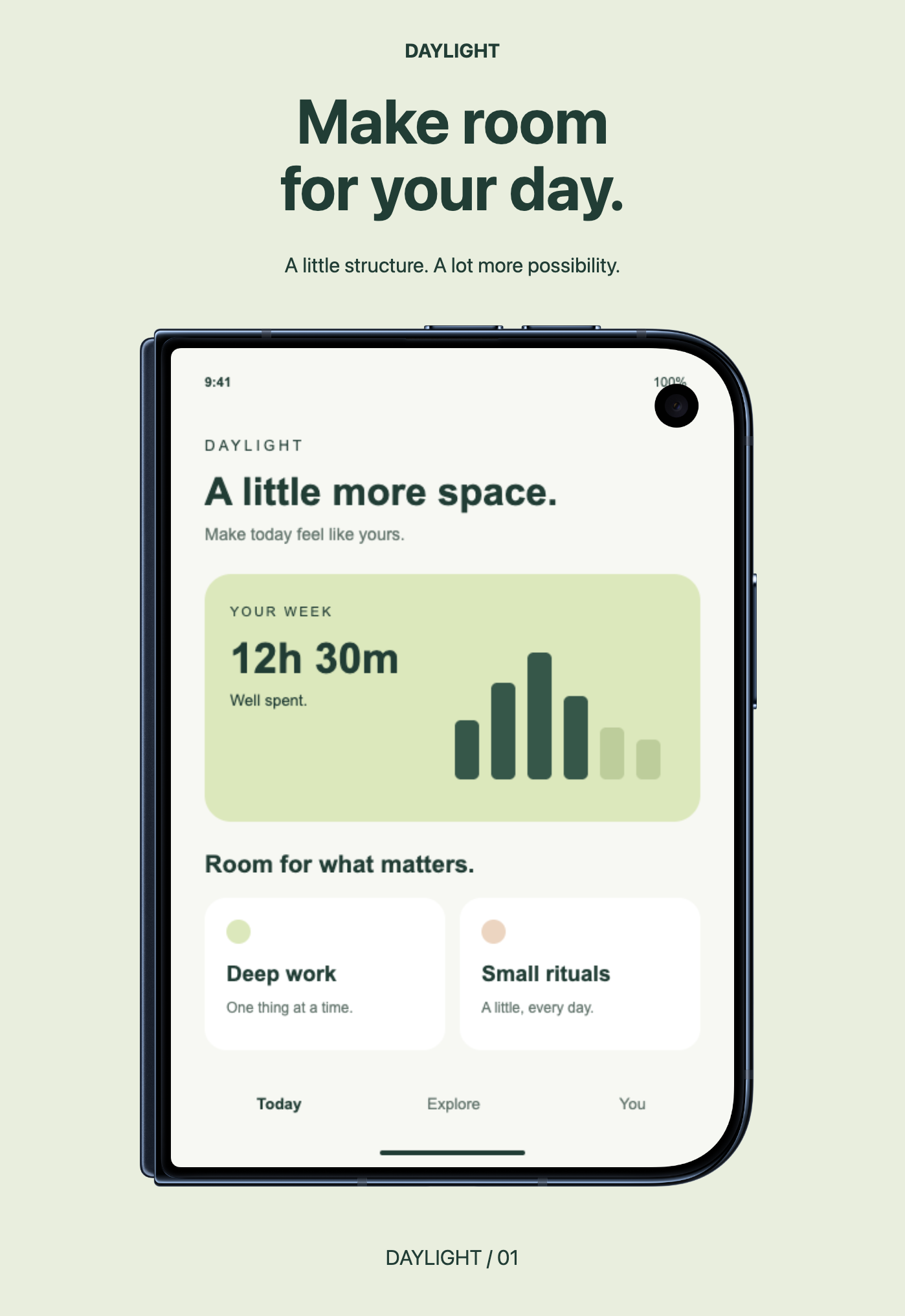
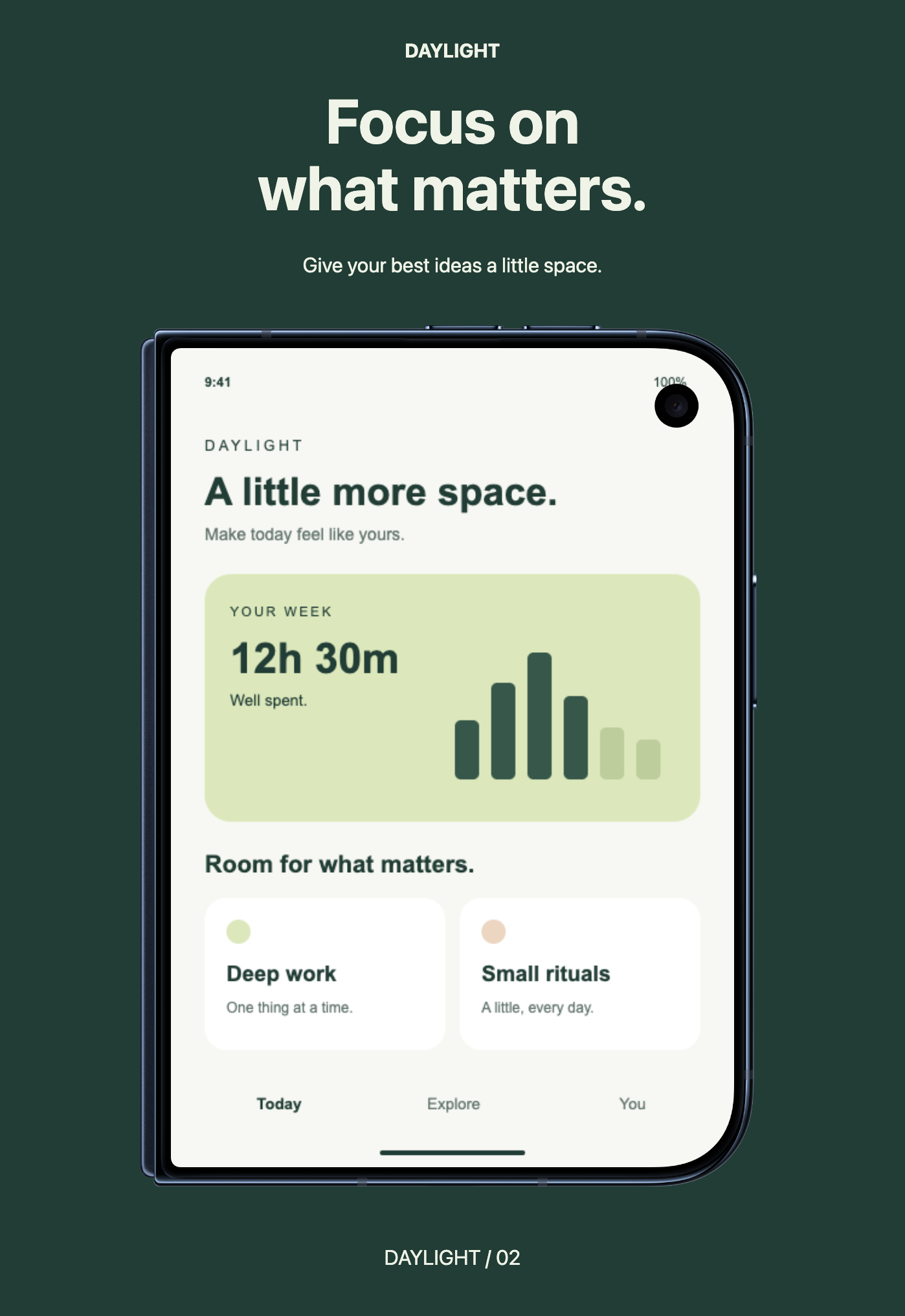
Three coordinated iPhone Duo — Inner App Store layouts. Use Apple’s official iPhone Duo · Inner display portrait frame, then replace each screenshot. Artwork loads automatically; local import is available if needed.
These layouts have precisely positioned screenshot and bezel slots for iPhone 17 Pro Max, iPhone Duo outer and inner displays, and 13-inch iPad Pro (M5). Device artwork loads automatically. If it is unavailable, download the portrait PNG from Apple Design Resources and follow Apple’s included license and marketing guidelines. The previews show completed mockups with official Apple bezels; the editor retains the loaded artwork in your saved project.
Add your screenshots
If local import is needed, for iPhone use iPhone 17 Pro Max - Silver - Portrait.png (1470 × 3000). For iPad, use iPad Pro (M5) 13" - Space Black - Portrait.png (2300 × 3000). For Duo, use iPhone Duo - Night Sky - Outer Closed Portrait.png (1574 × 2194) or iPhone Duo - Night Sky - Inner Open Portrait.png (2247 × 3093). Keep the PNG’s original size and transparent padding.
Open the template and let the device artwork load. If setup appears, choose Add device to all artboards and upload the Apple PNG. It fills all three artboards in one step.
Select Screenshot · Replace image, then choose Replace image to upload your app screenshot. Use a 1320 × 2868 screenshot for iPhone, 1398 × 2034 for Duo outer, 2007 × 2853 for Duo inner, or 2064 × 2752 for iPad; matching aspect ratios also work. The image scales into its screen slot. Different ratios are center-cropped to fill the screen; adjust Crop to choose the visible area.
Switch artboards in Artboard and replace each screenshot separately. Edit the headlines and app name. Each layout is independent.
Export for App Store Connect
Choose PNG at 1× for each artboard: 1320 × 2868 for iPhone, 1398 × 2034 for Duo outer, 2007 × 2853 for Duo inner, and 2064 × 2752 for iPad. Keep the background opaque. These dimensions are listed in Apple’s screenshot specifications. Check your app’s required device sizes before uploading. Save the editable project to retain your imported bezel and screenshots.
Daylight is a fictional sample app. Replace its screens and copy with your own app before publishing. iPhone, iPad, and App Store are trademarks of Apple Inc., registered in the U.S. and other countries. Artboar is not affiliated with Apple.
From template to your own design
Choose Use this template. If this browser has a draft, choose Keep current, Save project, or explicitly Replace with template. Saving a project requests a download; check that you have the file before replacing work.
Select text in Layers and edit its Content in Object. Adjust fills, shapes and spacing. These templates use system fonts, which can vary between computers. Artboar also includes Inter, Lora, and JetBrains Mono; check text wrapping after changing fonts and before exporting.
Choose an artboard, export PNG, and check the downloaded image before sharing. Save a .design.json project to keep editable layers.
All examples use fictional brands, people and details. Replace sample identities and photographs before representing your own business or guest. Photo examples use original AI-generated product and portrait imagery, not real advertisements or guest appearances. Preview images are actual Artboar exports. Artwork is edited locally; loading a bundled template downloads its project file. Local recovery keeps one draft in this browser, when storage is available.