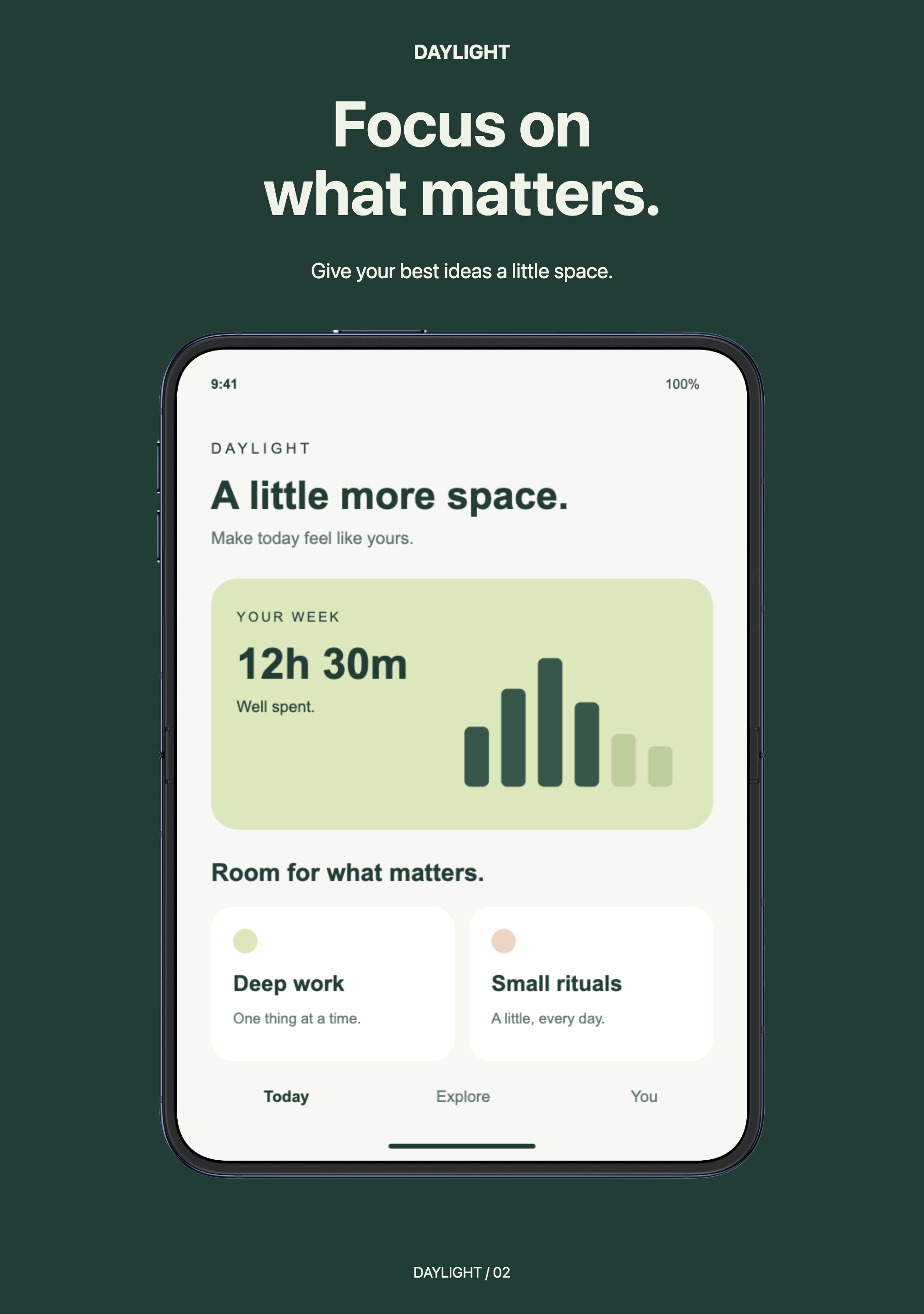
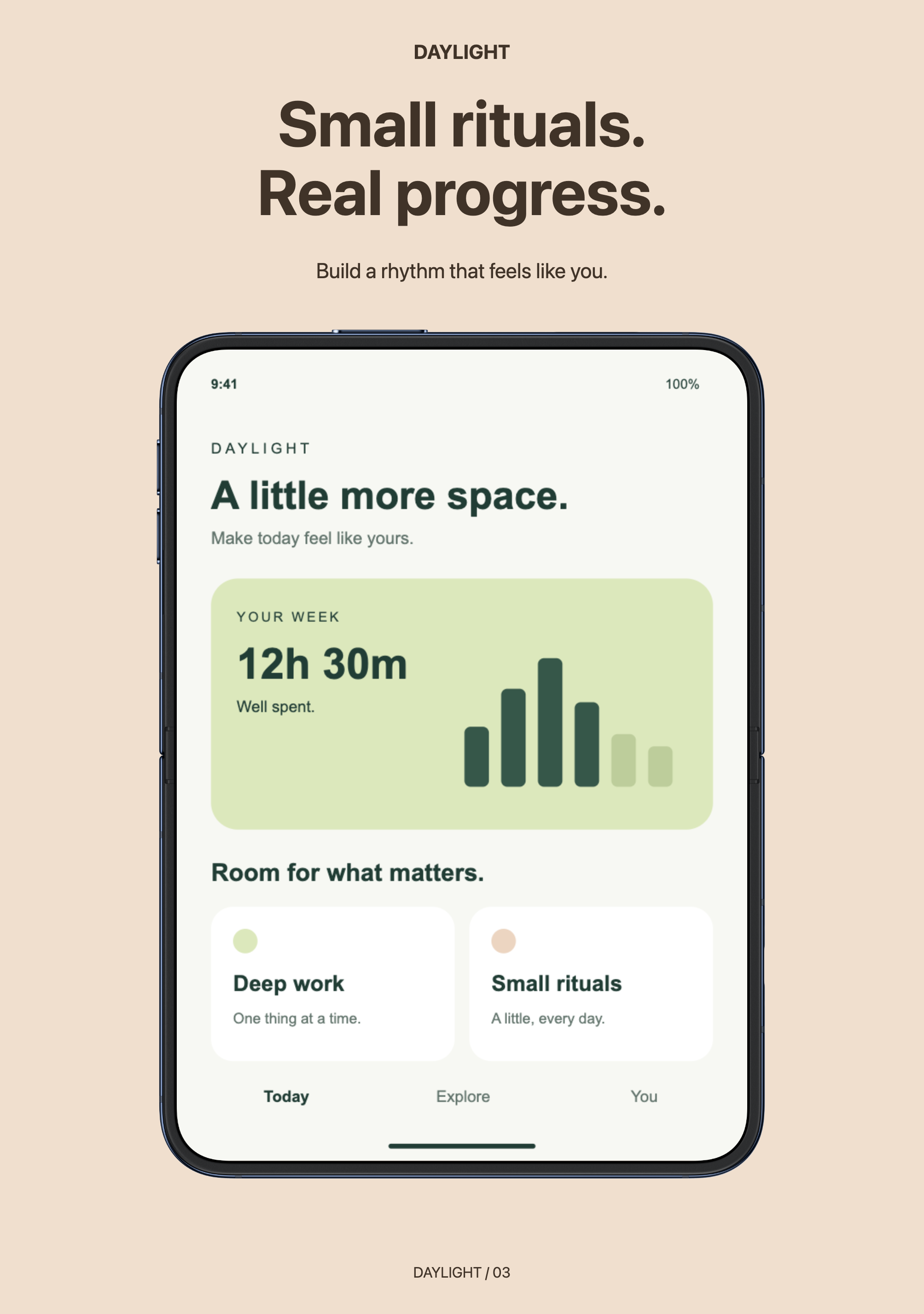
Show your app on both displays. Create iPhone Duo App Store screenshots with editable outer and inner display templates, official portrait frames, and exact PNG export sizes. Free, no account needed.
Preview includes the official Apple bezel. Artwork loads automatically; import the original PNG once if it is unavailable.
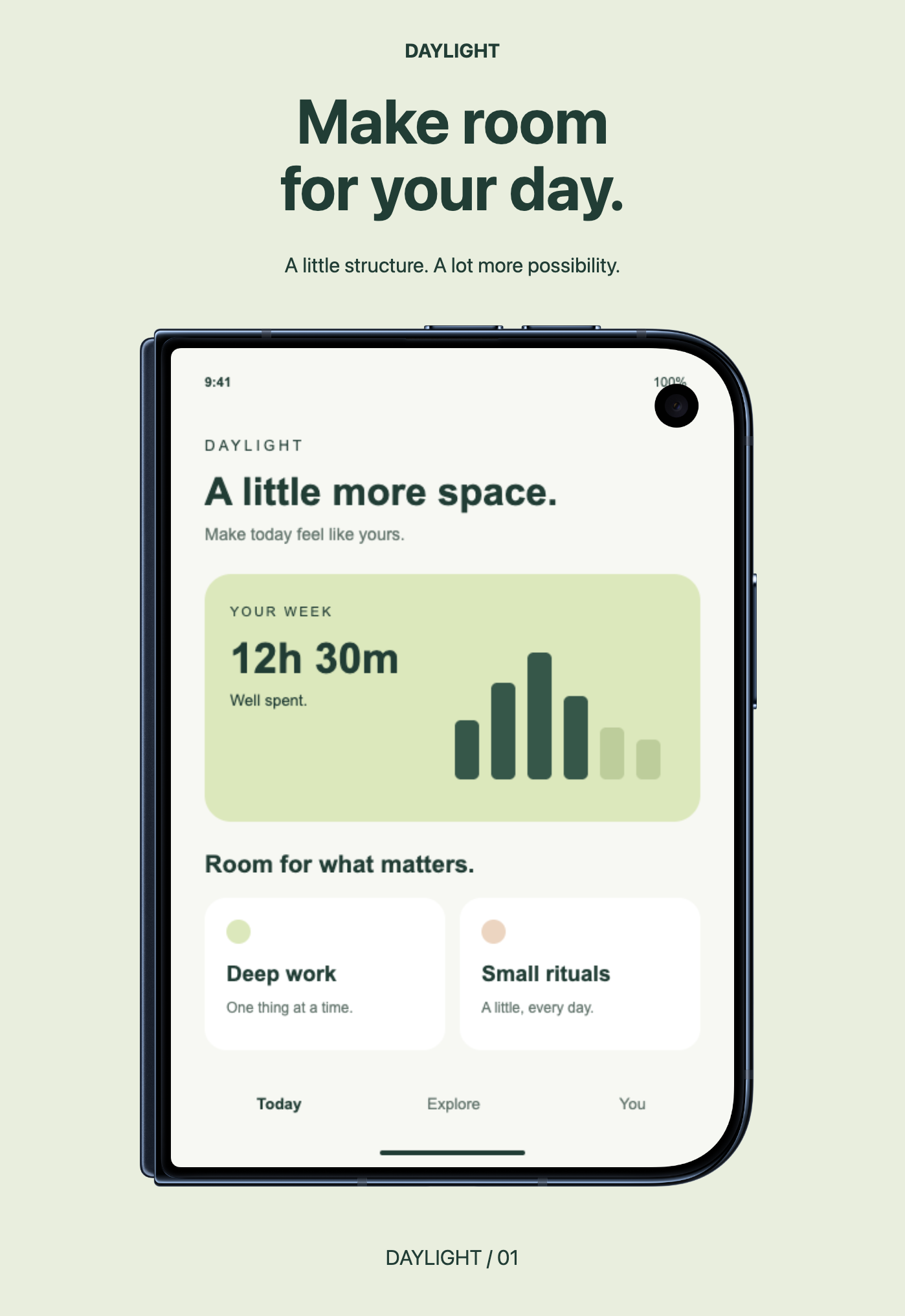
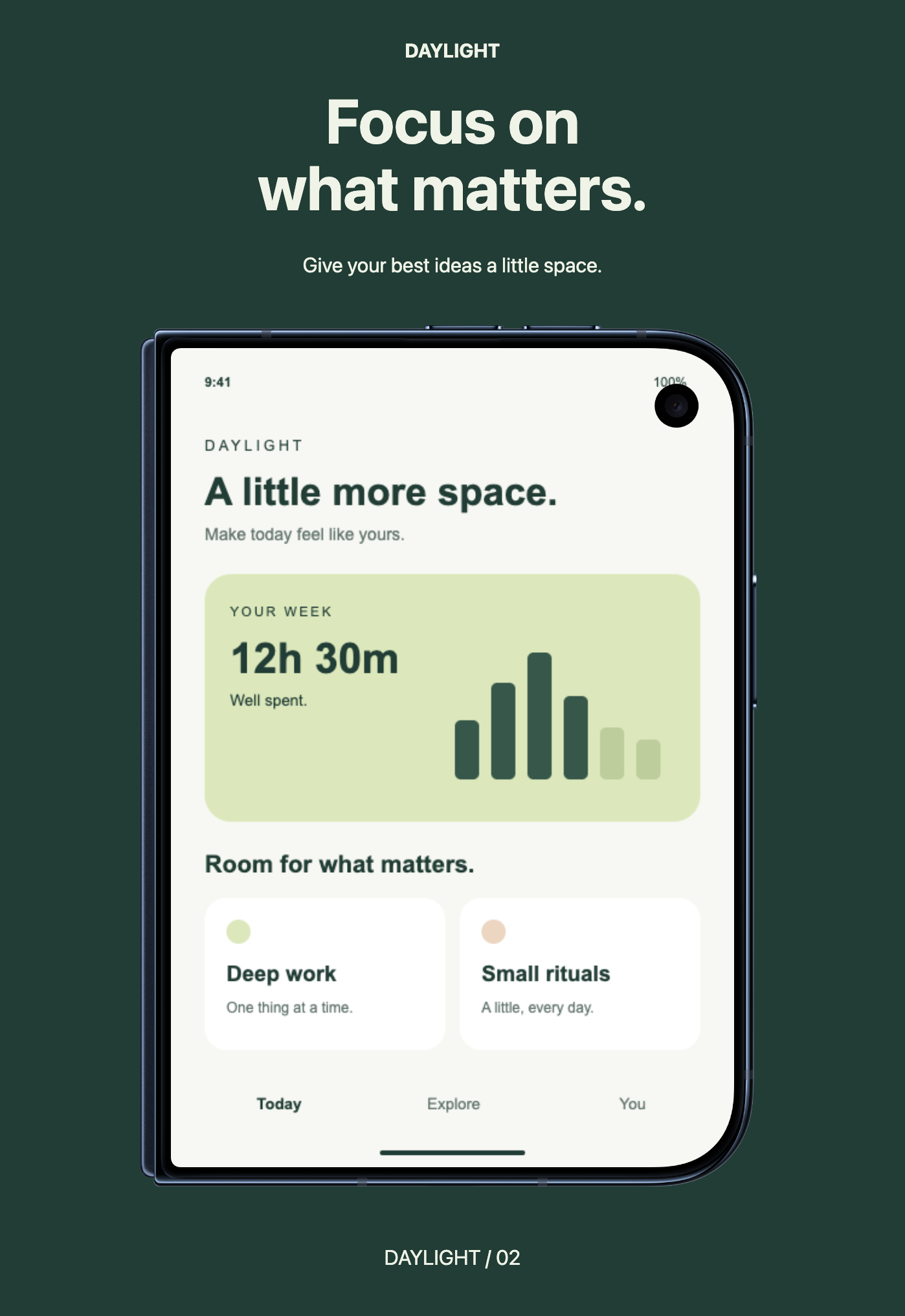
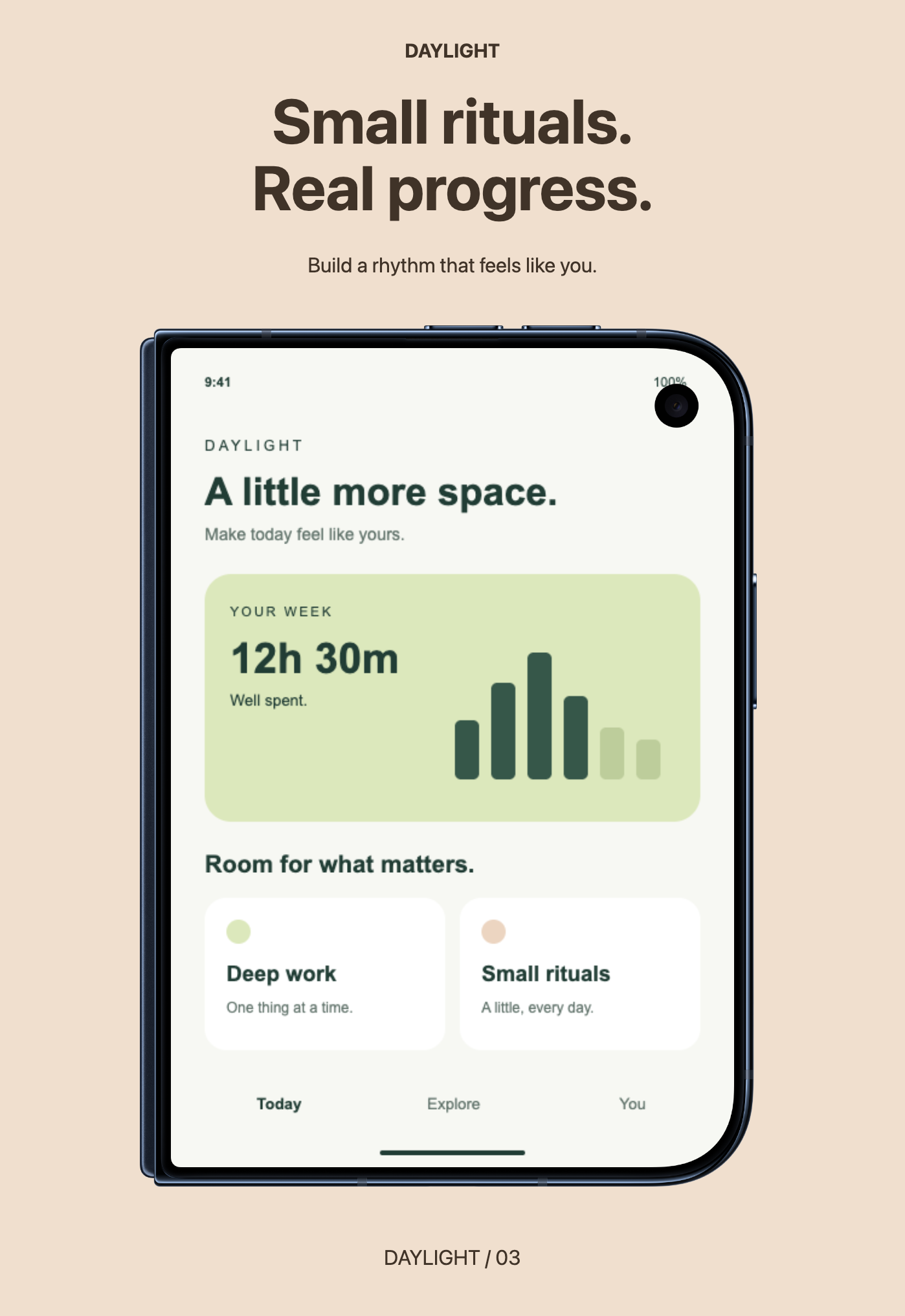
Three coordinated iPhone Duo — Outer App Store layouts. Use Apple’s official iPhone Duo · Outer display portrait frame, then replace each screenshot. Artwork loads automatically; local import is available if needed.
Preview includes the official Apple bezel. Artwork loads automatically; import the original PNG once if it is unavailable.
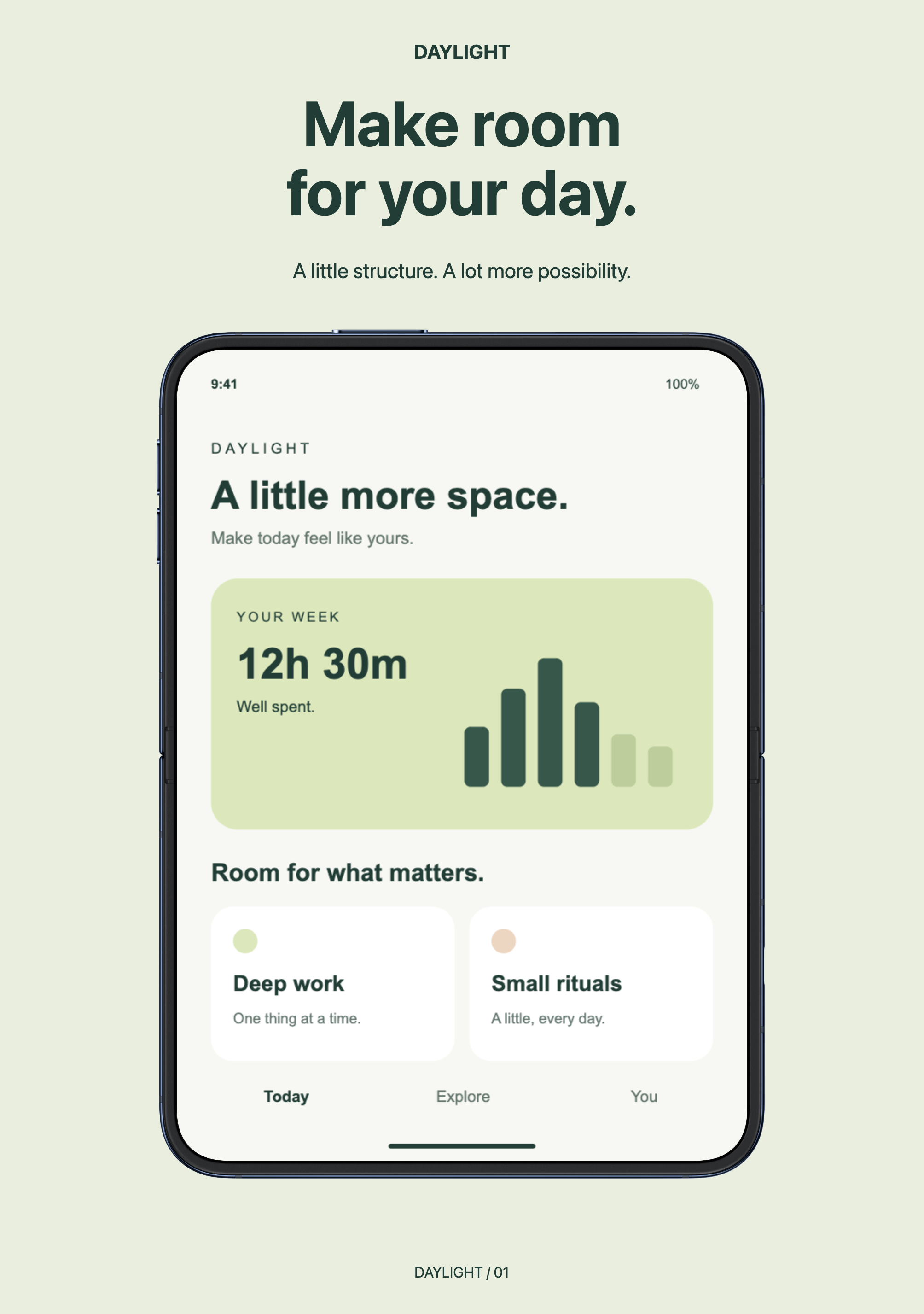
Three coordinated iPhone Duo — Inner App Store layouts. Use Apple’s official iPhone Duo · Inner display portrait frame, then replace each screenshot. Artwork loads automatically; local import is available if needed.
Open the outer or inner template above. If this browser has a draft, choose Keep current, Save project, or explicitly Replace with template. Saving requests a download; check that you have the file before replacing work.
Choose the outer or inner display
iPhone Duo has two screenshot sizes. Start with the portrait set for the display you are presenting: the outer closed display or the inner open display. Each project contains three coordinated artboards with separate headlines and screenshot layers. The previews above are actual Artboar exports with official Apple portrait frames.
Outer display portrait: 1398 × 2034 pixels. Use the outer template for screenshots of the closed display.
Inner display portrait: 2007 × 2853 pixels. Use the inner template for screenshots of the open display.
Artboar also includes landscape export-size presets: 2034 × 1398 for the outer display and 2853 × 2007 for the inner display. The ready-made layouts and device frames on this page are portrait only. A landscape preset changes artboard dimensions; it does not rearrange a portrait composition. Build and review your landscape layout separately.
Use Night Sky or Star White device frames
Official portrait artwork loads automatically when you open a template. Select the device and use its color selector to choose Night Sky or Star White on the current artboard. Repeat on the other artboards when you want a consistent frame color across the set.
If automatic loading is unavailable, download the matching portrait PNG from Apple Design Resources. Follow Apple’s included license and marketing guidelines. In the setup panel, choose Add device to all artboards and select the original PNG. Keep its transparent padding and original dimensions: the Night Sky outer file is iPhone Duo - Night Sky - Outer Closed Portrait.png (1574 × 2194); the inner file is iPhone Duo - Night Sky - Inner Open Portrait.png (2247 × 3093). These are frame-asset dimensions, not screenshot export sizes.
Replace screenshots, then export each artboard
Select Screenshot · Replace image in Layers and choose Replace image. Use your own app screenshot at the matching display ratio. Other ratios are center-cropped; adjust Crop to choose what stays visible.
Edit the headline and app name. These templates use system fonts, which can vary between computers. Artboar also includes Inter, Lora, and JetBrains Mono; check text wrapping after changing fonts. Switch artboards in Artboard and replace each screenshot and headline separately. Edits on one artboard do not update the others.
Choose PNG at 1×. Export the active artboard at 1398 × 2034 for outer or 2007 × 2853 for inner. Keep the background opaque, then inspect the downloaded image for cropping, text wrapping, and the correct display.
Repeat the export for each artboard. Use Save project to download a .design.json file that retains your editable layers, screenshots, and loaded device artwork. Check the download before closing or replacing your draft.
Before uploading, check Apple’s current App Store screenshot specifications for your app’s required device sizes and upload rules. A template is a design starting point; it does not determine which screenshots your app must submit.
Artwork is edited locally; opening a bundled template downloads its project file. Local recovery keeps one draft in this browser, when storage is available. A downloaded project is your portable backup.
Daylight is a fictional sample app. Replace its screens and copy before publishing. iPhone and App Store are trademarks of Apple Inc., registered in the U.S. and other countries. Artboar is not affiliated with Apple.